What is a subgraph?
A subgraph is an architecture nested inside a component. It has its own components, connections, and layers — just like the root level. This lets you model your system at multiple levels of abstraction.
For example, a top-level "API Gateway" component might contain an internal architecture with Auth, Router, and Rate Limiter sub-components. Each of those could, in turn, contain their own internal structure.
Subgraphs can be nested to any depth, giving you a fractal-like view of your system: zoom out for the big picture, zoom in for implementation details.
Zooming into a component
Double-click a component on the canvas to zoom into its subgraph. An elevator-style animation plays as the view transitions to the nested level.
If the component doesn't have children yet, double-clicking creates an empty subgraph ready for you to populate with new components and connections.
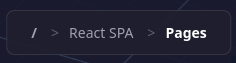
Once inside, the canvas shows the internal architecture of that component. The breadcrumb bar appears below the toolbar to show where you are.
Navigating back up
There are three ways to go up one or more levels:
- Click a breadcrumb segment — jump directly to that level. The root is always shown as
/. - Double-click the ground — go up one level
- Press Esc or Backspace — go up one level
Each navigation triggers the same smooth elevator animation, keeping you oriented as you move between levels.
External nodes
When you navigate into a subgraph, Tesseract automatically shows virtual external nodes representing the parent-level components that are connected to the one you zoomed into. This gives you context about how the subgraph relates to the rest of the system without leaving the current level.
External nodes appear on a dedicated External layer. They behave like regular components with a few differences:
- Their name, type, and description mirror the real component at the parent level. Editing these fields updates the original.
- Their position is local to the subgraph and can be moved independently.
- The External layer is locked — it cannot be renamed or deleted.
- The Side Panel shows an "External node" badge to indicate the node is virtual.
Virtual connections
Connections between an external node and a subgraph component are virtual connections. Their protocol, description, and direction are inherited from the parent-level connection. Editing these properties propagates the change back to the parent. Only the curvature is stored locally.
The Side Panel shows an "Inherited from parent connection" badge for virtual connections.
Navigating to an external node
Double-click an external node to navigate across to its own subgraph (if it has one). Unlike zooming in and out which use a vertical elevator animation, cross-navigation uses a horizontal slide animation to visually distinguish the two actions.
Depth rings
Components that contain a subgraph with children display a set of concentric rings beneath them on the canvas. These depth rings are a visual cue that the component can be double-clicked to navigate into a deeper level.
Depth rings can be toggled on or off in Settings.
Breadcrumb bar
The breadcrumb bar appears automatically whenever you are below the root level. It displays the full path from root to your current position:
- Previous segments are clickable — click to jump to that level
- The current segment (rightmost) is displayed in bold and is not clickable
- The root is always shown as
/
At the root level, the breadcrumb bar shows only /.
Finding components across levels
The Search field in the toolbar (Ctrl+K) searches across all levels of the hierarchy. When you select a result, the editor automatically navigates to the correct level and selects the component.
Each search result shows the component's path alongside its name, so you can tell which level it belongs to.
Navigation shortcuts
| Action | How |
|---|---|
| Zoom into a component | Double-click the component |
| Go up one level | Double-click the ground, Esc, or Backspace |
| Jump to any level | Click a breadcrumb segment |
| Jump to root | Click the / breadcrumb |
| Jump to root | Home |
| Open the Subgraphs tree | S |
| Find a component anywhere | Ctrl+K then search by name |
Tips for structuring subgraphs
- Start broad, then zoom in — begin with a high-level overview (5–10 components), then progressively add internal detail where it matters.
- Keep each level focused — a subgraph should represent a single level of abstraction. If you have too many components at one level, consider grouping some into a parent component.
- Use naming conventions — component names should be clear enough to navigate by breadcrumb alone (e.g. "Auth Module" is more useful than "Module 3").
- Use with AI — ask Claude to help you decompose a complex component into an internal architecture through the MCP integration.